Create an LCS Project
1. Open lcs.dynamics.com in your web browser.2. Log in with your credentials. (If you do not have credentials, you will either need to create an account or work with your administrator. If you are a Global admin in Office 365 then you can go to office.portal.com and log in, Click Admin to go to the Admin center, then click Admin > Dynamics 365 for Operations. This will take you over to LCS with your credentials that you logged into Office 365 with.)
3. On the LCS home page click the Add icon in the Recent projects area.
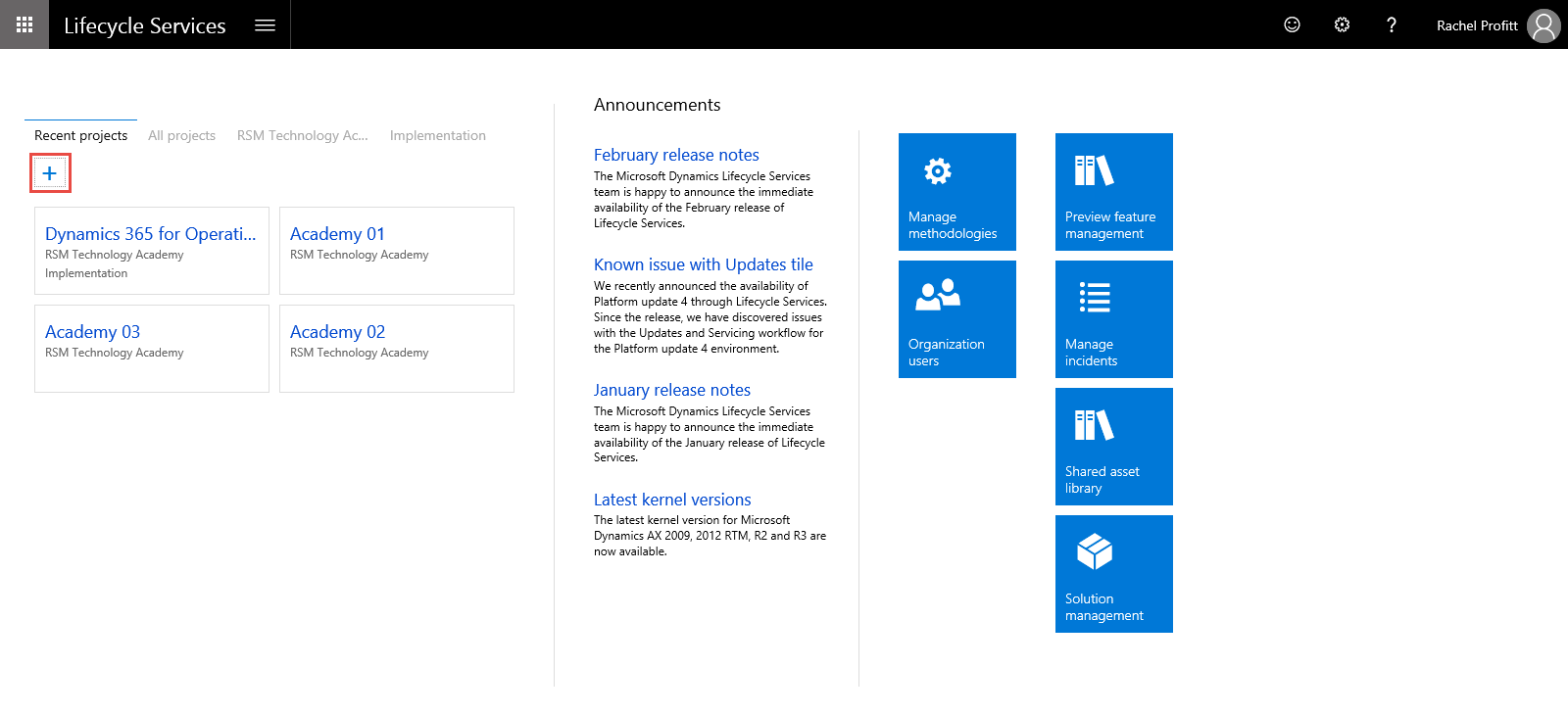
4. On the Create a project pane, type a unique name for your project in the Name field. For example if this project will be used for a Demo environment you might type "Demo". If you are a customer and you want a separate project for Developers, for example, you might type "Development".
5. Type a detail description in the Description field.
6. In the Product name field, select Microsoft Dynamics 365 for Operations.
7. In the Industry field, select an appropriate industry or if one of the options does not apply to your organization, select Other.
8. Click Create.

Add a Project User to the LCS Project
The next step in the process is to add users to your project. Users are required for anyone that needs access to manage or monitor your environment. If you are using the Business process library or other features, a user would need access to be able to manage and upload documents, modify the methodology and so on.
1. Open lcs.dynamics.com in your web browser.
2. Log in with your credentials.
3. Select the LCS project you want to add a user to from the list.
4. Click the Hamburger menu button. (That really is the real name for that funny little button with three horizontal lines - the more you know!)
5. Select Project users from the list.

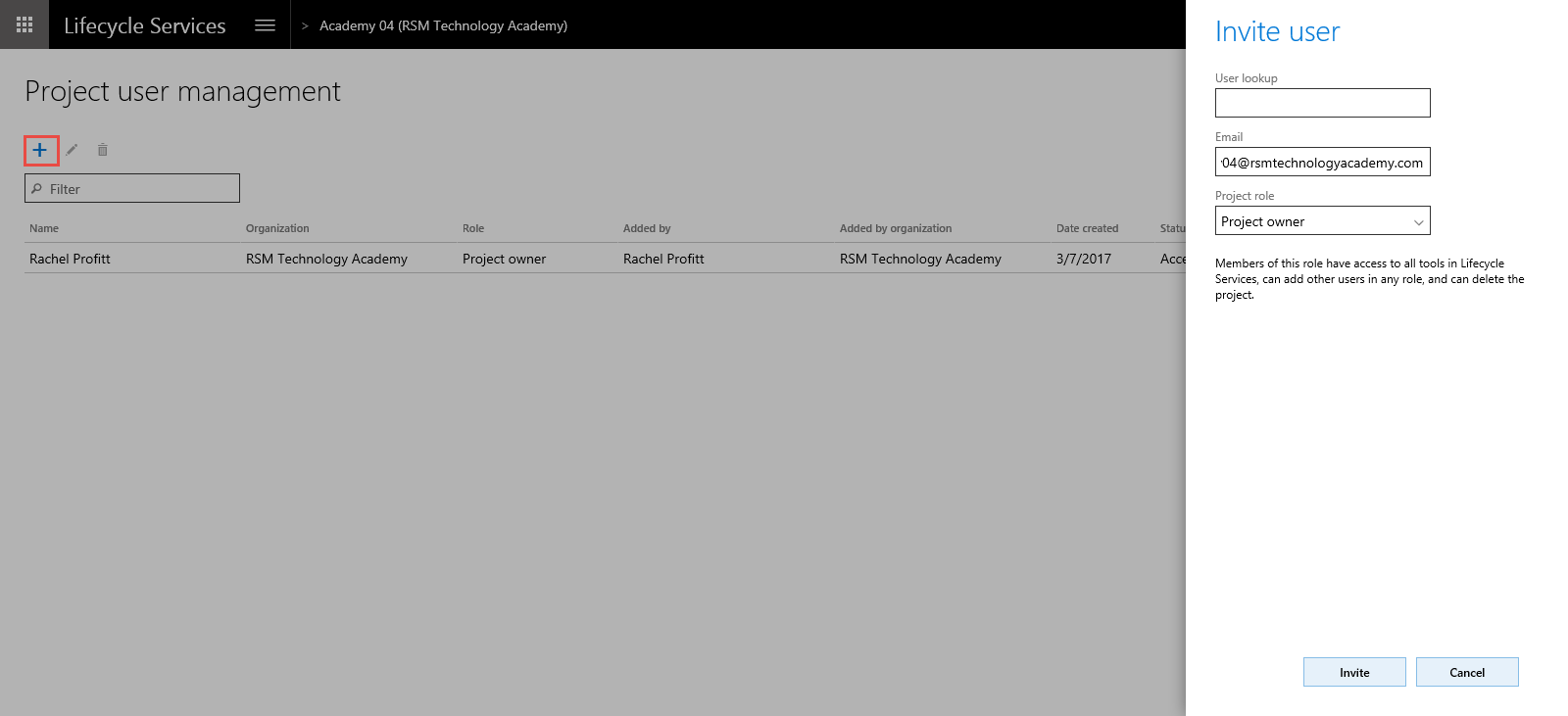
6. On the Project user management page, click the Add icon to create a new user.
7. In the Email field you can do one of two things:
a. If the user you are adding is part of your organization (a user in your Office 365 tenancy or AAD tenancy) then you can use the User lookup field to find the user.
b. If the user is not part of your organization, or you just want to type an email address, then enter that email address into the Email field.
8. In the Project role field, select the role you want to assign to the user.
9. Click Invite.

No comments:
Post a Comment